
FX-Viewer and Mac OS Tahoe
19/03/26 09:02 Filed in: FX-Viewer
FX-Viewer and macOS Tahoe
If you are updating your Mac to macOS Tahoe, you will need to re-install FX-Viewer by downloading the installer again from SMART Centre.
macOS Tahoe introduces changes to system-level permissions and security protocols that affect how the FX-Viewer licence is activated and verified. There is no change to the FX-Viewer software itself — the re-installation simply updates the licence wrapper so that it is compatible with macOS Tahoe.
To re-install FX-Viewer:
If you are updating your Mac to macOS Tahoe, you will need to re-install FX-Viewer by downloading the installer again from SMART Centre.
macOS Tahoe introduces changes to system-level permissions and security protocols that affect how the FX-Viewer licence is activated and verified. There is no change to the FX-Viewer software itself — the re-installation simply updates the licence wrapper so that it is compatible with macOS Tahoe.
To re-install FX-Viewer:
- Delete the existing FX-Viewer application from your Applications folder.
- Download the latest FX-Viewer installer from SMART Centre.
- Run the installer and follow the on-screen instructions.
- If you have previously installed and activated FX-Viewer, you will most likely be asked during installation whether you would like to use an existing ticket.
Click YES. This will ensure that your existing licence is retained. - Once the installation is complete, FX-Viewer should open and operate as normal.
"Extensions" menu is greyed out in Adobe Photoshop
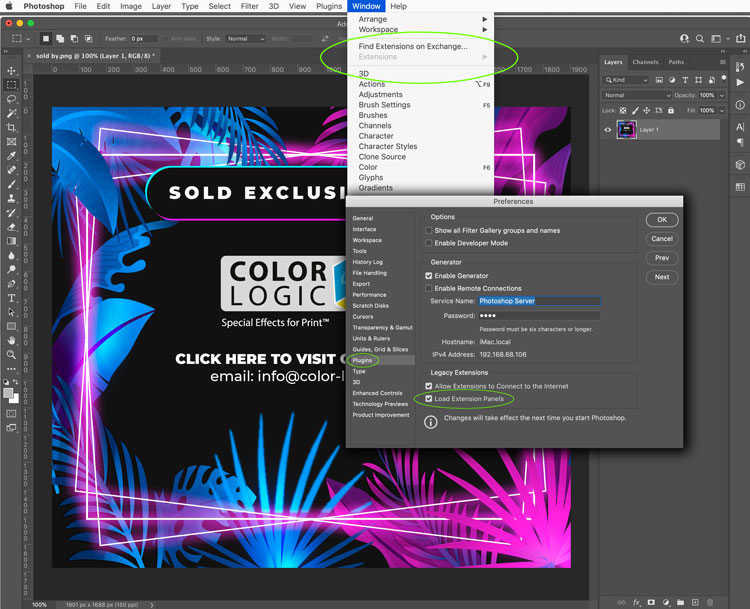
If the Extensions menu is greyed out, you need to switch on the extensions panel option:
PREFERENCES > PLUGINS
Ensure the checkbox is switched on for "Load Extensions Panels"
Quit and restart Photoshop
PREFERENCES > PLUGINS
Ensure the checkbox is switched on for "Load Extensions Panels"
Quit and restart Photoshop
FX-Viewer showing an empty room environment
16/10/23 15:24 Filed in: FX-Viewer
If after installing FX-Viewer and Ghostscript you are getting an empty room after dragging a Color-Logic PDF into FX-Viewer:
1. First of all make sure your PDF has a Color-Logic separation – if the PDF does not contain the "CL 4713 SILVER" spot color it will not be able to do the rendering.
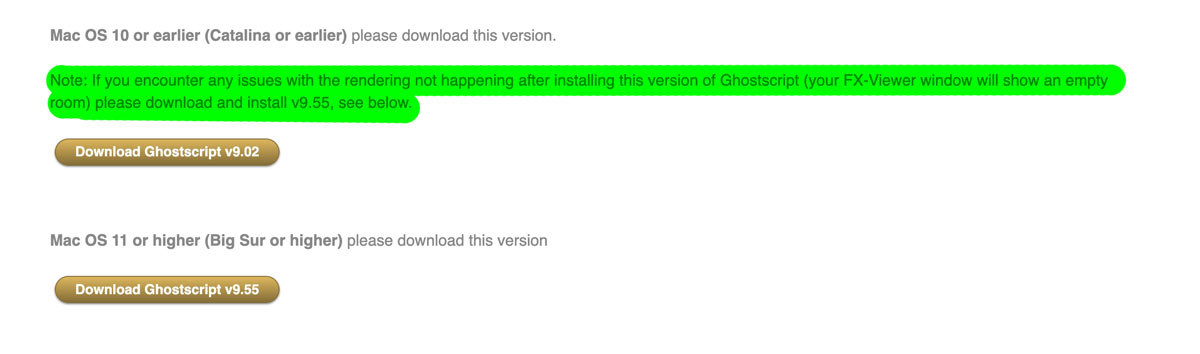
2. If your PDF does contain the Color-Logic spot color, it could be a problem related to the version of Ghostscript that is installed. We would recommend using v9.55 from our Ghostscript download page – Just download, run the installer to update to the latest version. An empty room environment is usually related to the version of Ghostscript and the Mac OS.
1. First of all make sure your PDF has a Color-Logic separation – if the PDF does not contain the "CL 4713 SILVER" spot color it will not be able to do the rendering.
2. If your PDF does contain the Color-Logic spot color, it could be a problem related to the version of Ghostscript that is installed. We would recommend using v9.55 from our Ghostscript download page – Just download, run the installer to update to the latest version. An empty room environment is usually related to the version of Ghostscript and the Mac OS.
Error installing Image-FX using Anastasiy's Extension Manger
If you are experiencing installation issues or error messages when attempting to install Image-FX using Anastasiy’s Extension Manager, please try the following:
1. Uninstall Image-FX from Anastasiy’s Extension Manager
2. Try installing Image-FX using www.zxpinstaller.com
1. Uninstall Image-FX from Anastasiy’s Extension Manager
2. Try installing Image-FX using www.zxpinstaller.com
Apple Macs Running the M1 chip
*** We are currently redeveloping all our plugins for the new Apple UXP ***
In the meantime, customers running the latest Apple Macs with the M1 chip will need to open Photoshop in Rosetta Mode in order to continue to use the Color-Logic Image-FX plugin – this is because Adobe Photoshop on the M1 chip computers no longer supports HTML5 plugins/extensions and there is no "extensions" menu. However, simply opening Photoshop in Rosetta mode will open Photoshop in the original apple code and allow you to continue to use third party plugins, whilst developers learn the new apple code and redevelop their products. There has been no noticeable speed differences between the silicon version of Photoshop or switching to Photoshop in Rosetta mode, with no loss of function.
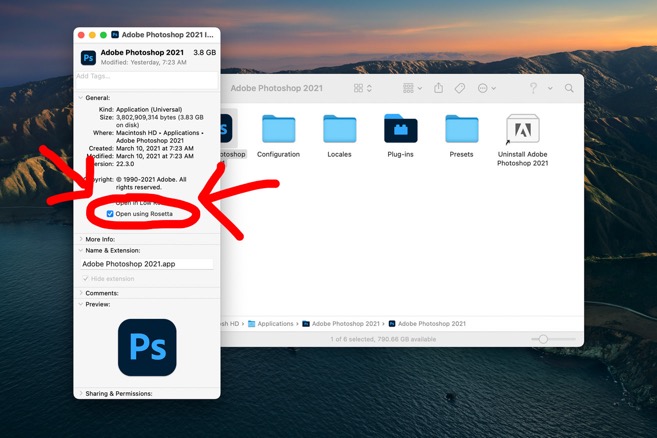
To open Photoshop in Rosetta mode:
1. "get info" on the Adobe Photoshop application and switch on "Open using Rosetta" this will then allow the application program to open up using the original apple code and will therefor allow you to continue to use plugins and extensions.
2. Open Photoshop, that's it!
In the meantime, customers running the latest Apple Macs with the M1 chip will need to open Photoshop in Rosetta Mode in order to continue to use the Color-Logic Image-FX plugin – this is because Adobe Photoshop on the M1 chip computers no longer supports HTML5 plugins/extensions and there is no "extensions" menu. However, simply opening Photoshop in Rosetta mode will open Photoshop in the original apple code and allow you to continue to use third party plugins, whilst developers learn the new apple code and redevelop their products. There has been no noticeable speed differences between the silicon version of Photoshop or switching to Photoshop in Rosetta mode, with no loss of function.
To open Photoshop in Rosetta mode:
1. "get info" on the Adobe Photoshop application and switch on "Open using Rosetta" this will then allow the application program to open up using the original apple code and will therefor allow you to continue to use plugins and extensions.
2. Open Photoshop, that's it!